
Mercer Canvas

Connect your course.
Keep control of your token.

Flante can organize a Mercer Canvas course into its modules, reading guides, weekly days, topics, and cases without using a shared institutional account.

01. Open your Canvas settings

In Mercer Canvas, open Account, then choose Settings from the account navigation.
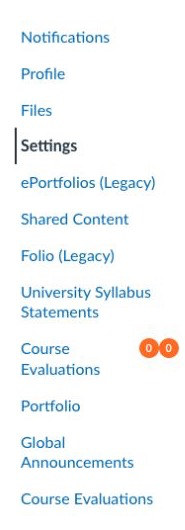
The Mercer Canvas account navigation with Settings selected
Mercer CanvasThe Mercer Canvas account navigation with Settings selectedOpen full size ↗

02. Start a new access token

Scroll to Approved Integrations and choose New Access Token.
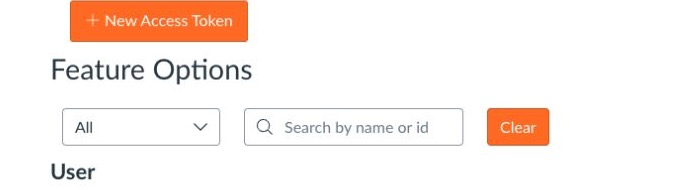
The New Access Token action in Mercer Canvas settings
Mercer CanvasThe New Access Token action in Mercer Canvas settingsOpen full size ↗

03. Name, expire, and copy the token

Enter Flante as the purpose, choose an expiration date and time, then select Generate Token. Mercer Canvas currently allows a maximum expiration of 30 days. Copy the token immediately; Canvas will not show the full value again.
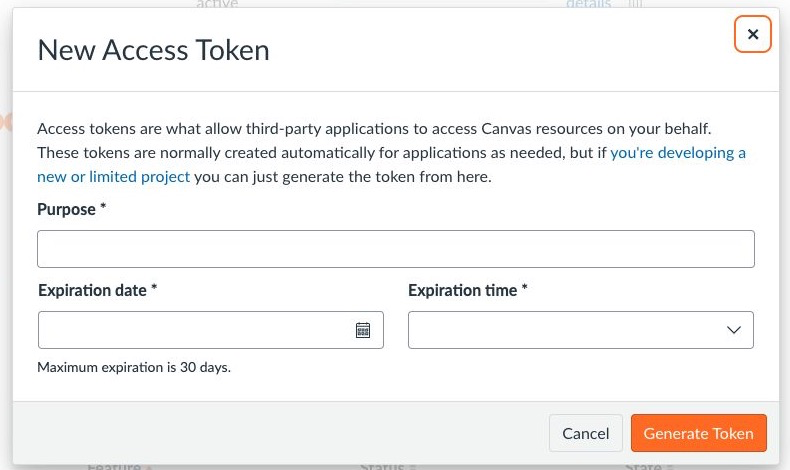
The Mercer Canvas form for naming a new access token and choosing its expiration
Mercer CanvasThe Mercer Canvas form for naming a new access token and choosing its expirationOpen full size ↗

04. Connect Flante

Open the Canvas connection in Flante, paste the copied token, and choose Verify and Connect. Flante stores the token in macOS Keychain.
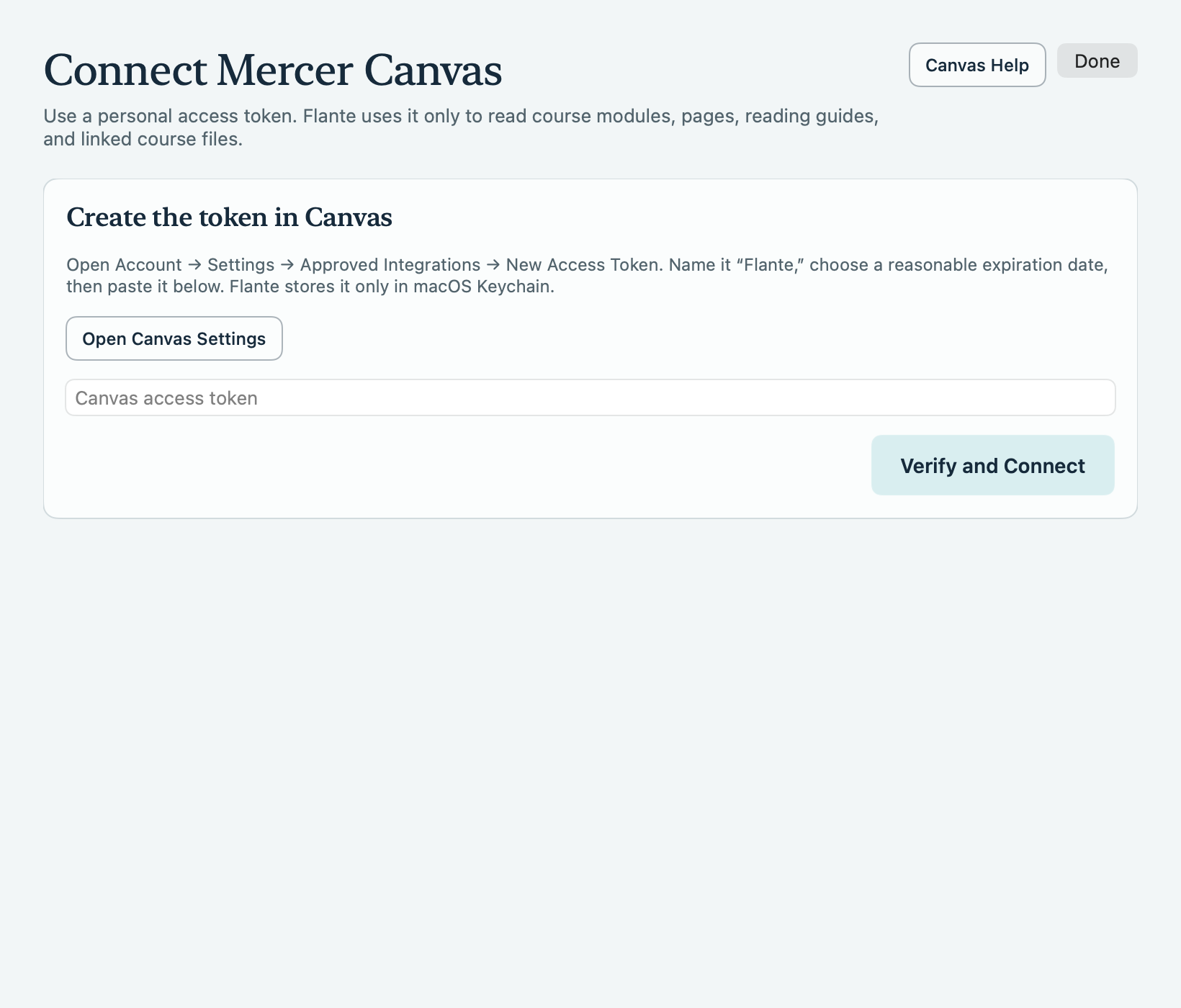
Flante’s Canvas connection window explaining how to create and enter a personal access token
Actual Flante appFlante’s Canvas connection window explaining how to create and enter a personal access tokenOpen full size ↗

Good to know: Your Canvas token is stored in macOS Keychain, removed when you disconnect, and never included in the diagnostic report.

05. Choose your course and module

Select your current course, load its modules, and choose the module you are taking. Flante imports the preferred reading guide and applies its matching weekly schedule.
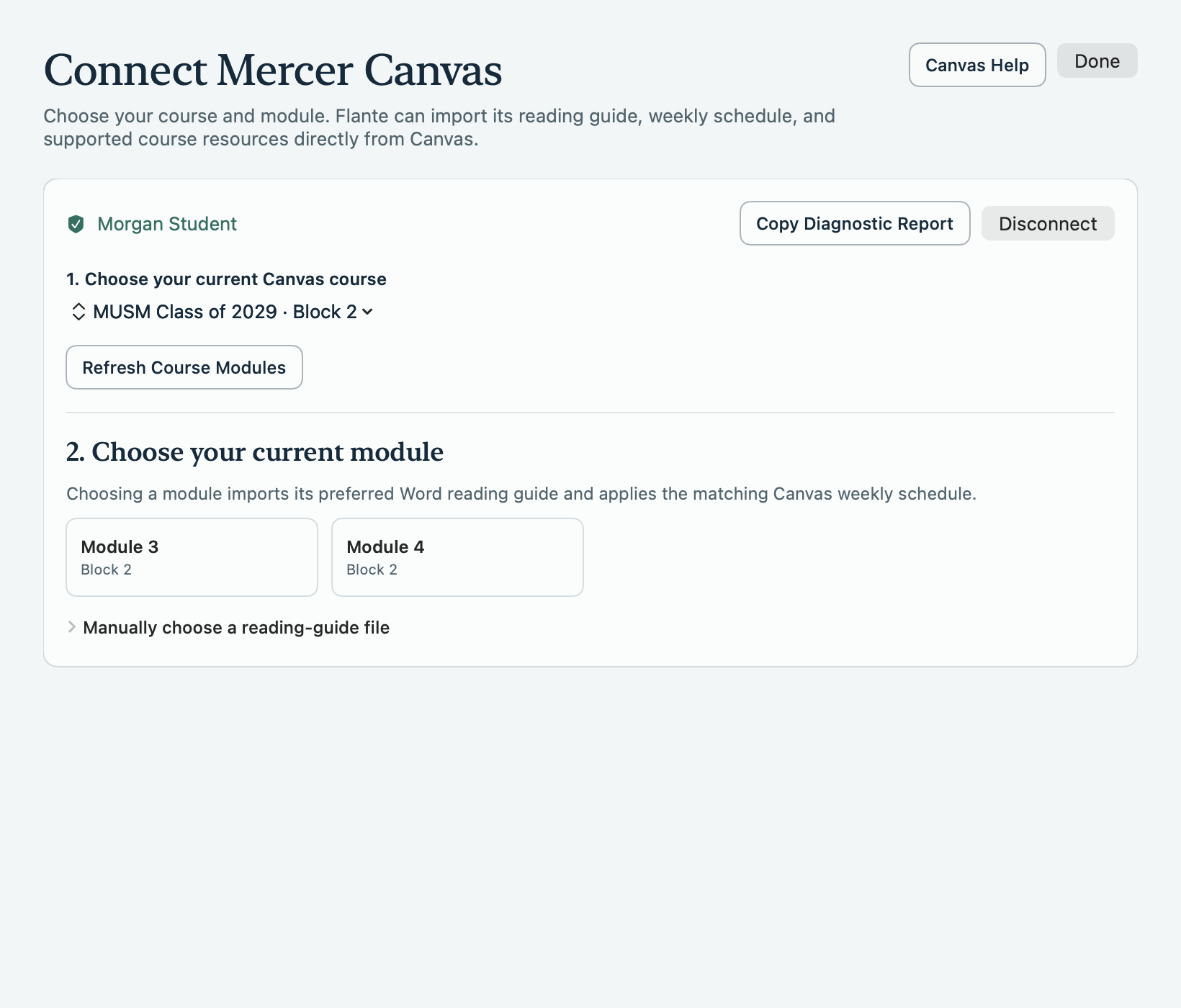
Flante connected to Mercer Canvas with a current course and module choices
Actual Flante appFlante connected to Mercer Canvas with a current course and module choicesOpen full size ↗

06. Add only the assigned resources

Flante lists supported documents linked from the course. Add only the slides, PDFs, Word files, and other sources assigned for the topics you are studying.
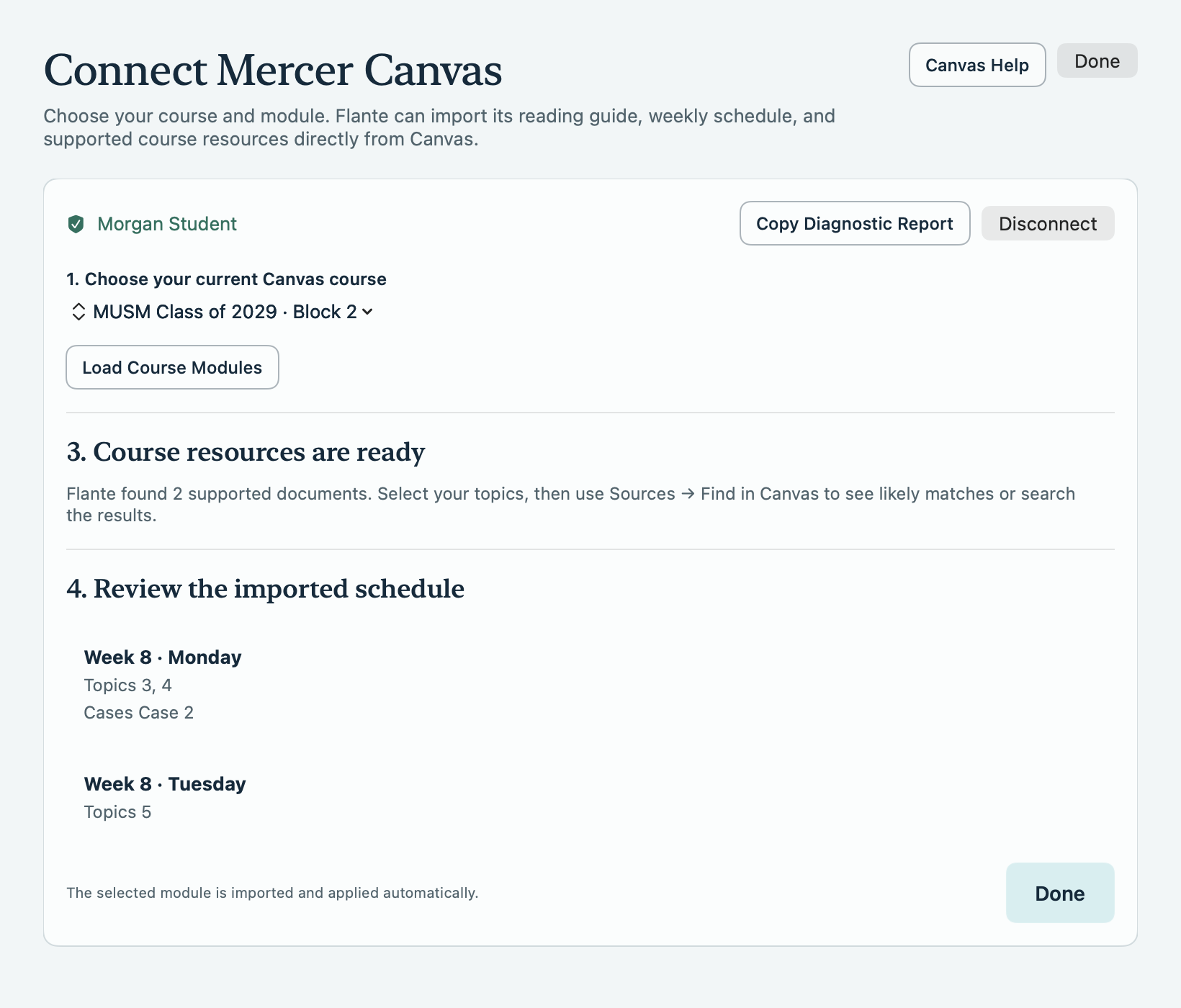
Flante listing supported course resources found in the selected Canvas course
Actual Flante appFlante listing supported course resources found in the selected Canvas courseOpen full size ↗

07. Choose what to study

Review the imported schedule, then deliberately select the week, days, and topics you want. Flante does not preselect material after an import or week change.
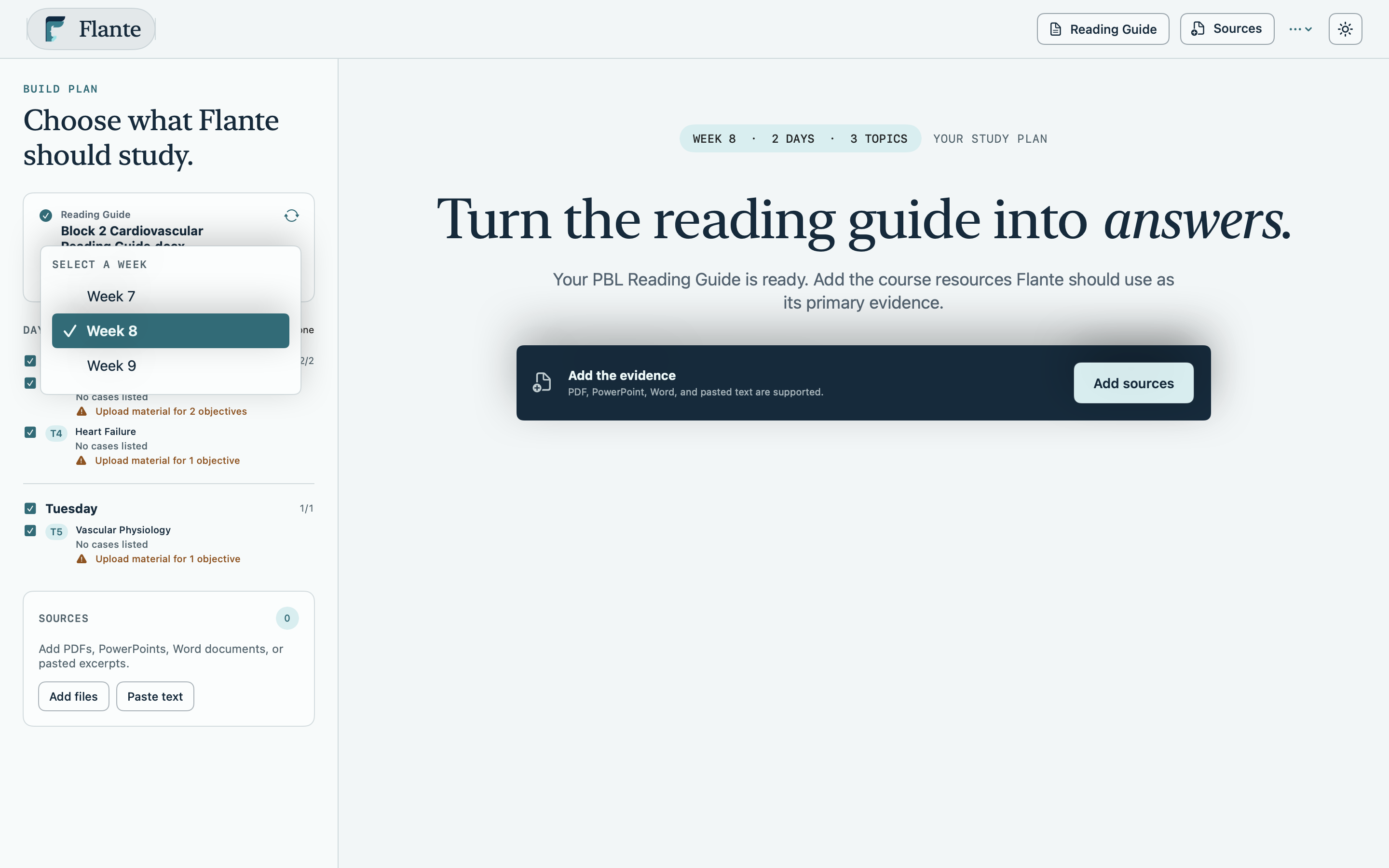
The Flante week menu with Week 8 selected and its days and topics available
Actual Flante appThe Flante week menu with Week 8 selected and its days and topics availableOpen full size ↗
Token privacy

Your Canvas access
stays yours.

Each student creates a personal token. Flante stores it in that Mac’s Keychain, uses it only to read material the student can already access, and removes it when Canvas is disconnected.

Never included in diagnosticsThe copied support report excludes the Canvas token and all reading-guide and page contents.

No shared Canvas accountStudents see only the courses and files allowed by their own Canvas enrollment.

Clear recovery pathIf automatic module discovery is inconclusive, students can use the manual reading-guide list without rescanning the course.

What if my Canvas token expires?

Create a replacement token in Canvas and reconnect Flante. An expired or rejected token cannot be used to read course material.

How does Flante identify a module?

Flante starts with the organization provided by Canvas, then checks the reading guide’s own block and module headings. A filename is only a secondary hint, not the primary source of truth.

What should I send support if a course does not work?

Choose Copy Diagnostic Report in the Canvas window and paste the report into your support message. It includes course, module, page, and guide titles plus any access failures, but not your token or document contents.

Need help with
your Canvas course?

Contact support