
Tutorial 03 · 4 min

Export notes your way

Take the reviewed document into the format and folder structure that fits your study routine.

1. Choose what to include

Select exactly which generated days and topics belong in this export. Unchecked work remains safely available in Recent Notes for seven days.
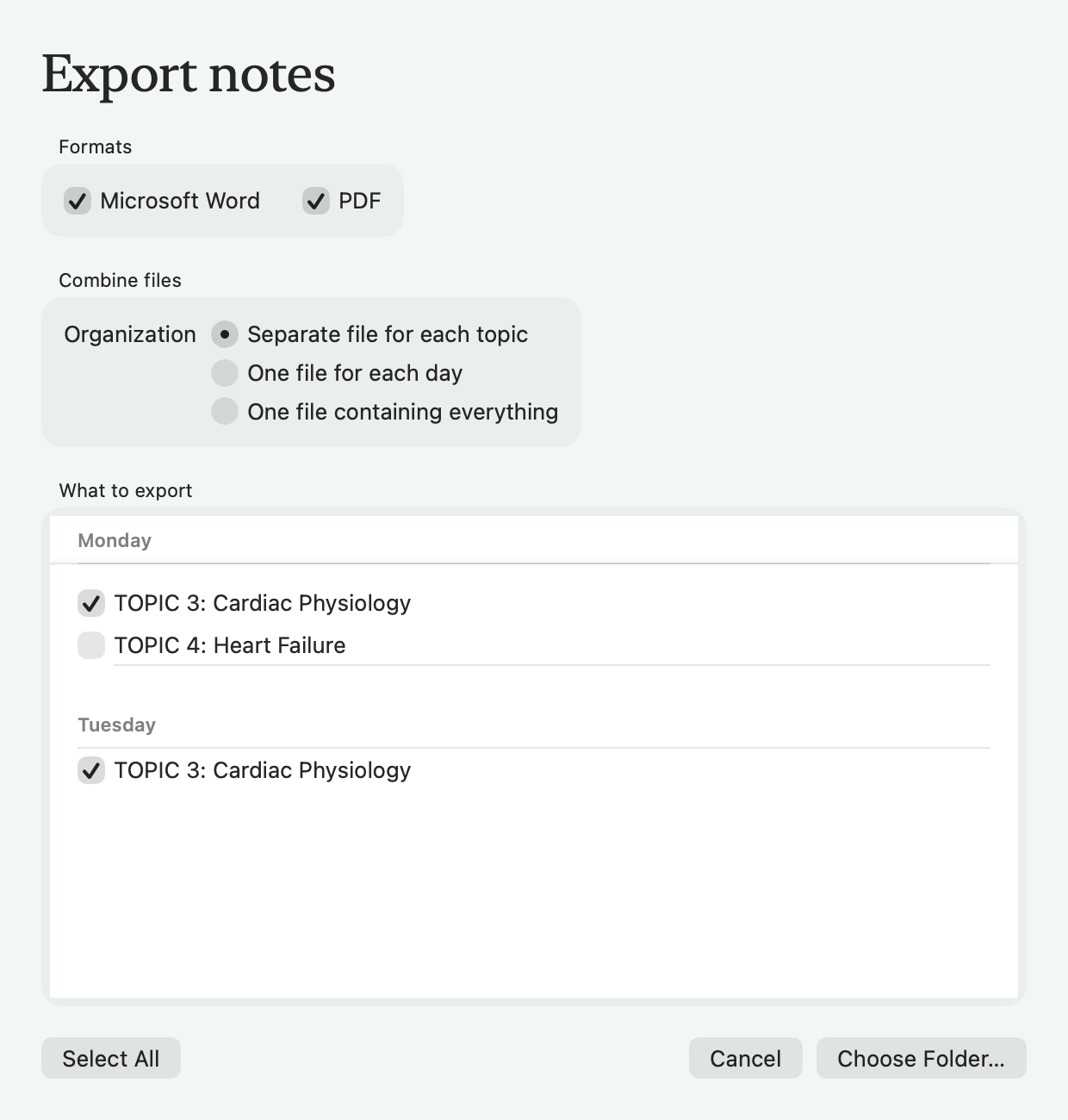
The export dialog with one specific topic selected from two study days
Actual Flante appThe export dialog with one specific topic selected from two study daysOpen full size ↗

2. Choose the structure

Create a separate file for every topic, one file for each day, or one combined study guide for the selected material.
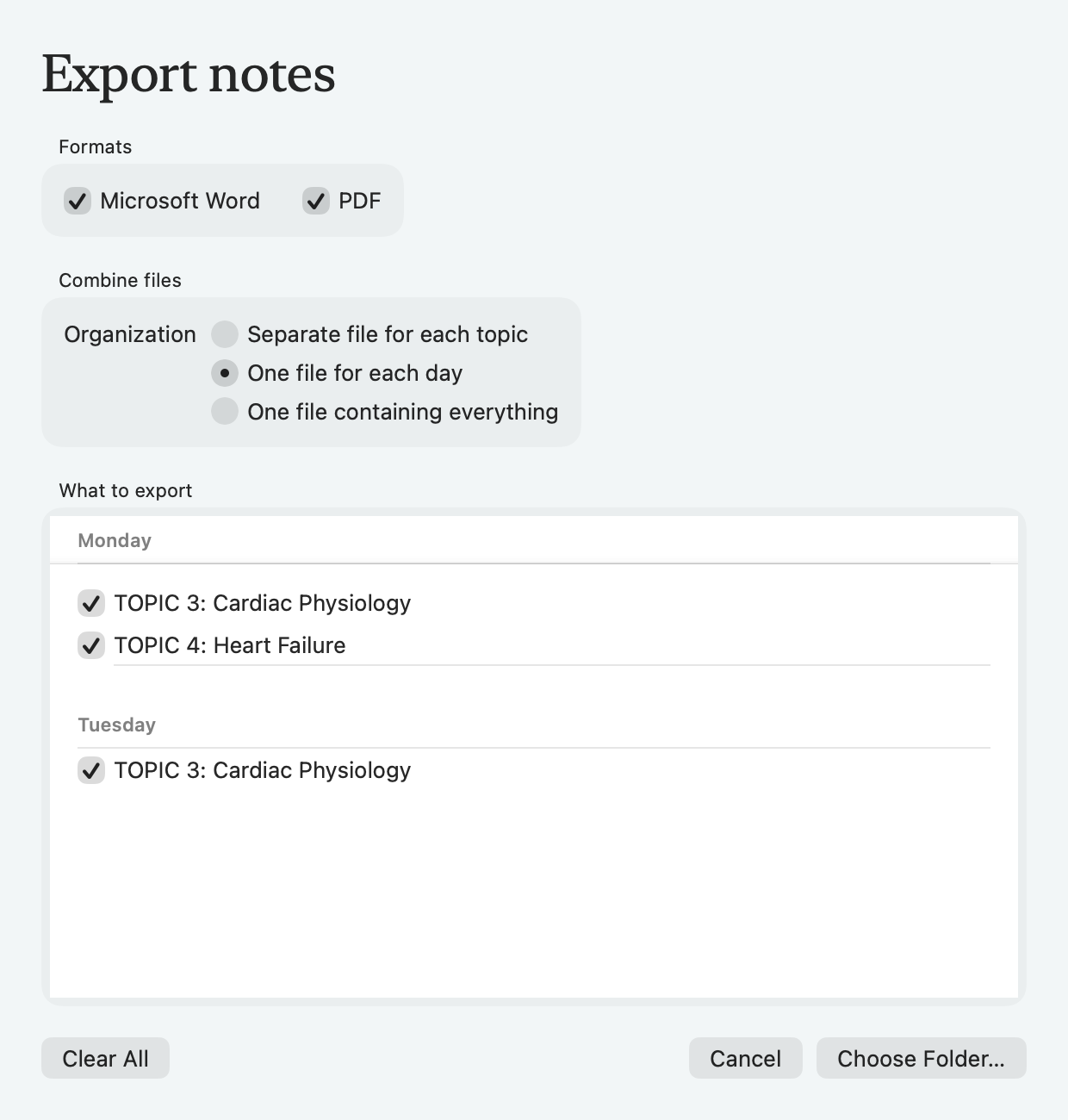
The export organization control set to one file for each day
Actual Flante appThe export organization control set to one file for each dayOpen full size ↗

Good to know: Flante never silently substitutes external literature for your course material. The evidence origin stays visible in the preview and export.

3. Choose Word, PDF, or both

Word and PDF preserve the same hierarchy, tables, callouts, figures, citations, references, headers, and Flante visual palette.
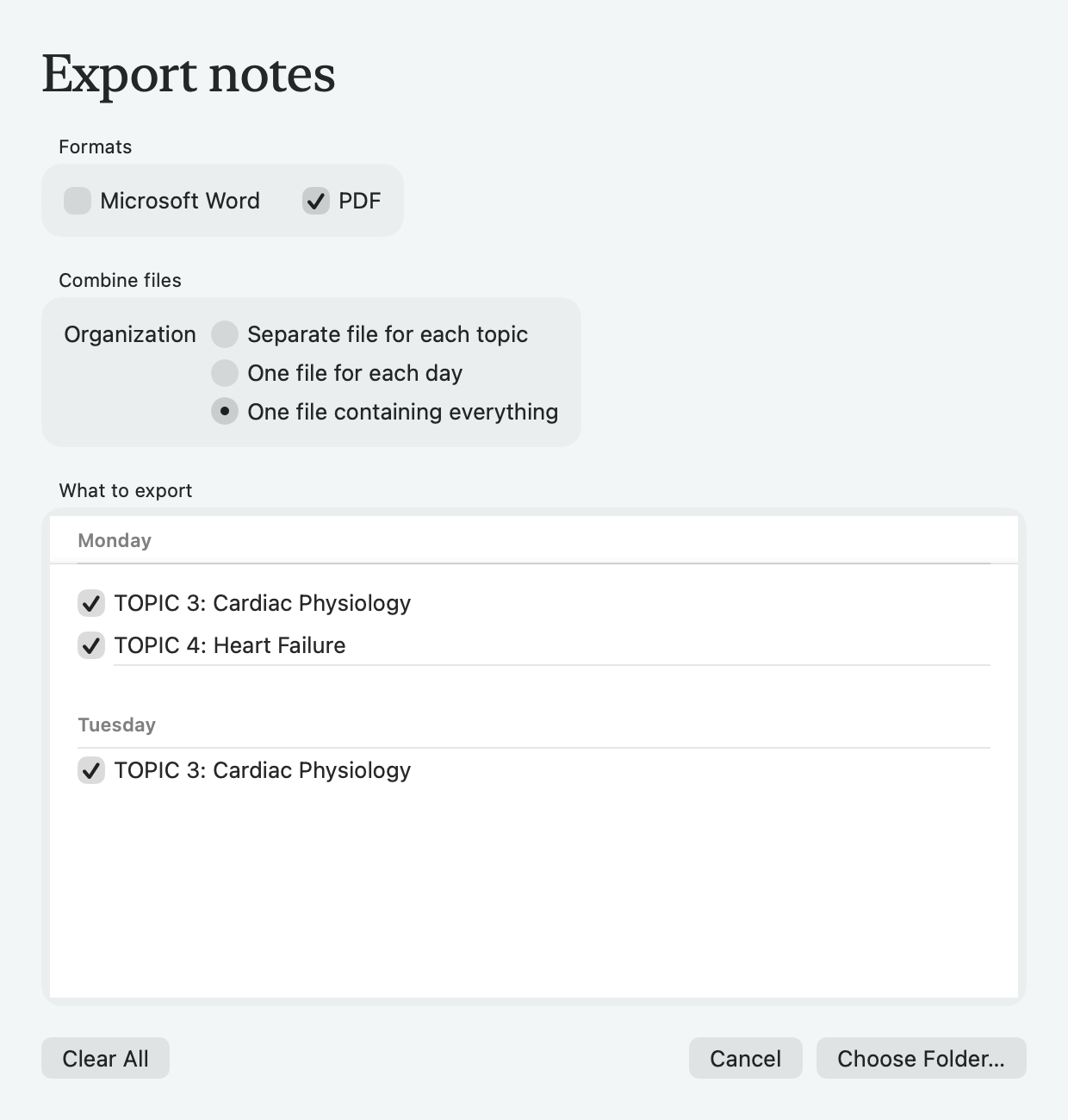
The export format controls with PDF selected and Microsoft Word unselected
Actual Flante appThe export format controls with PDF selected and Microsoft Word unselectedOpen full size ↗

4. Save native Google Docs

Connect Google Drive, choose a destination, and select the topics to upload. Flante creates week and day folders with one native document tab for each topic.
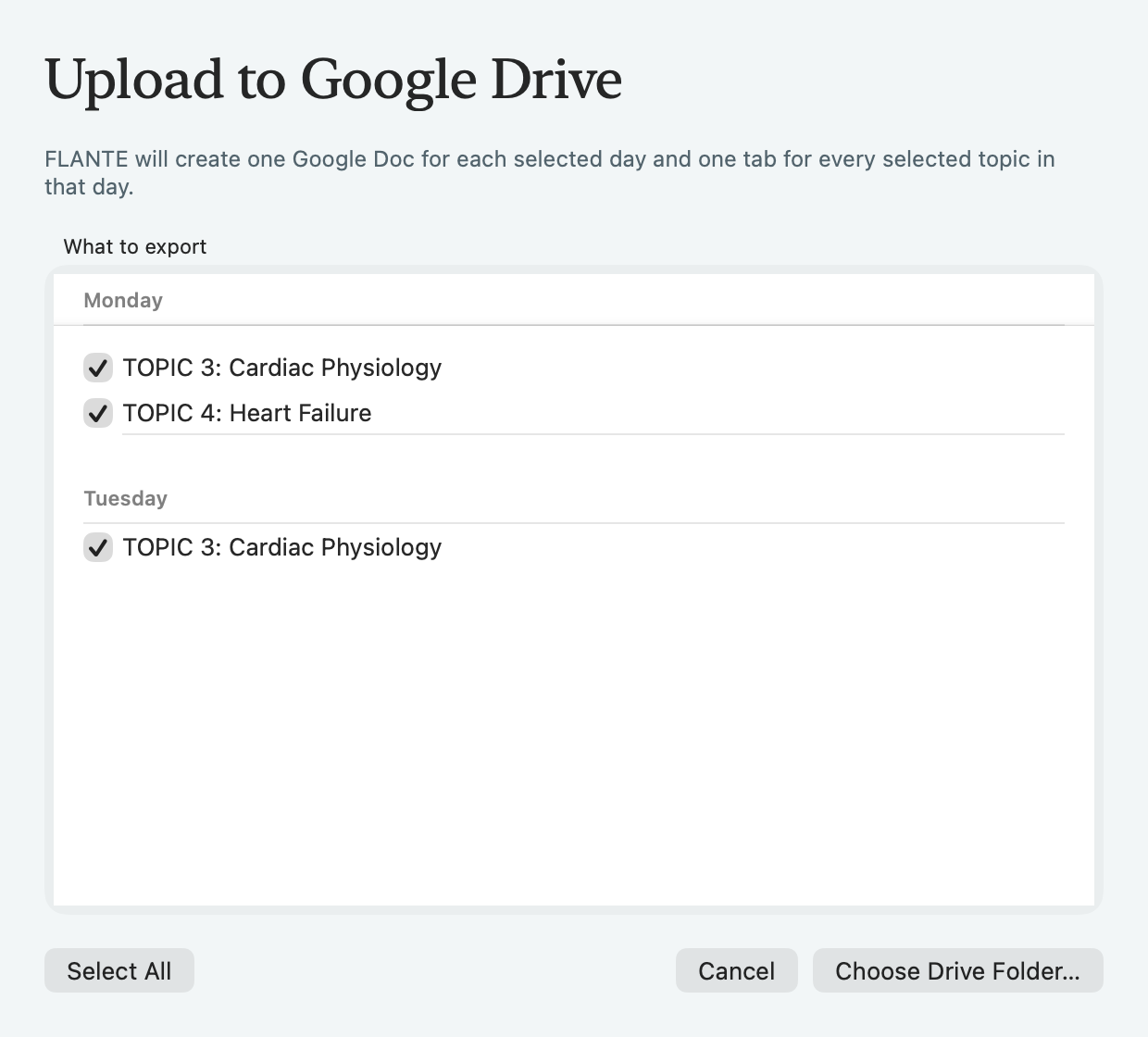
The Google Drive export dialog with topics selected for upload
Actual Flante appThe Google Drive export dialog with topics selected for uploadOpen full size ↗

Ready for the
next step?

All tutorials